A visual studio for composing & sound design
Build your soundscape on a canvas.
Draw a phrase with a mouse or digital pen. Play with multi-touch, a computer keyboard or MIDI/MPE controller. Change the notes, instruments and effects—and see the sound take shape.
The spectrogram shows the rendered sound after the instrument and effects. Your notes, bends and expression remain editable on top.
Explore the sound canvas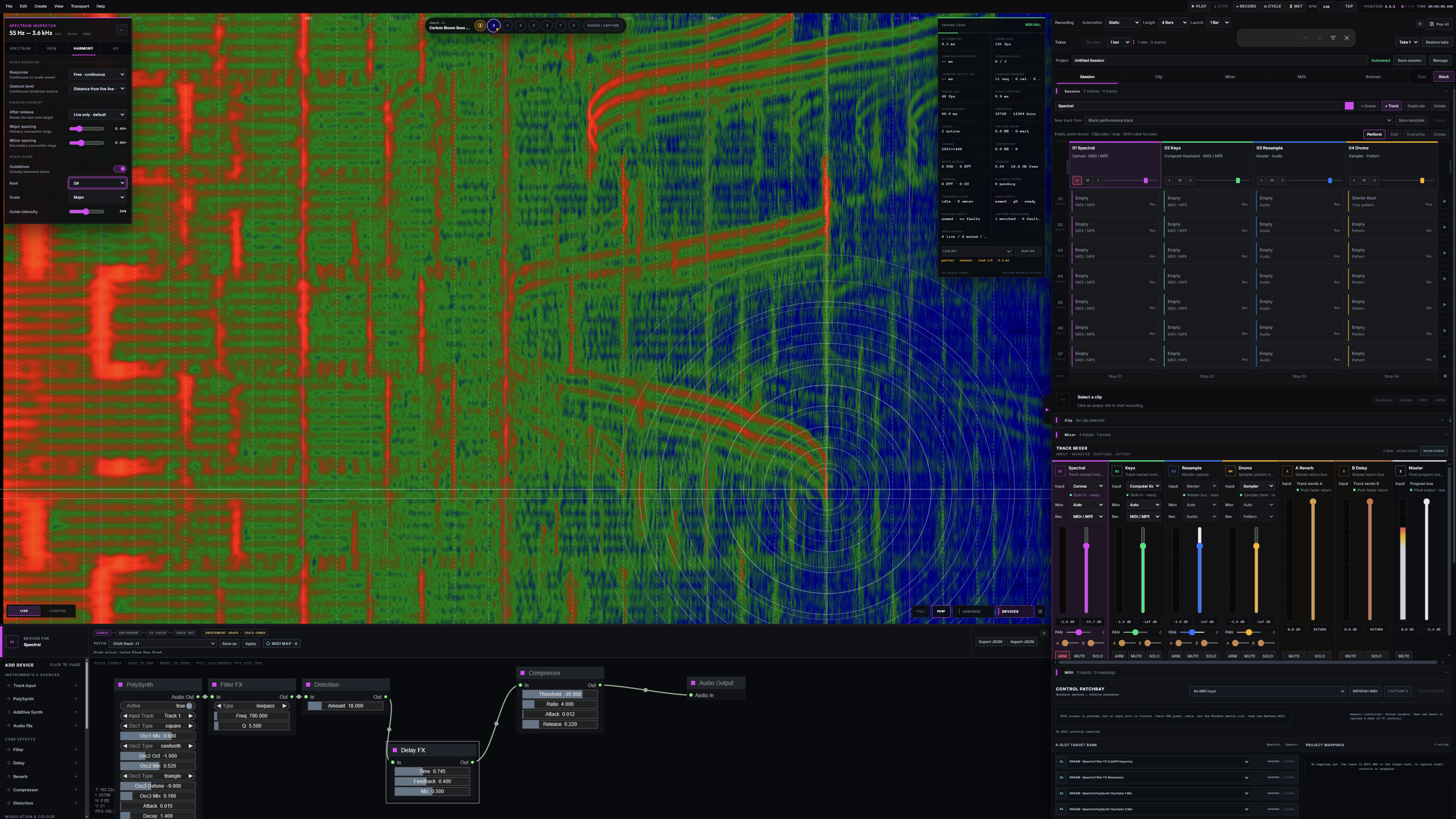
More than where
the notes go.
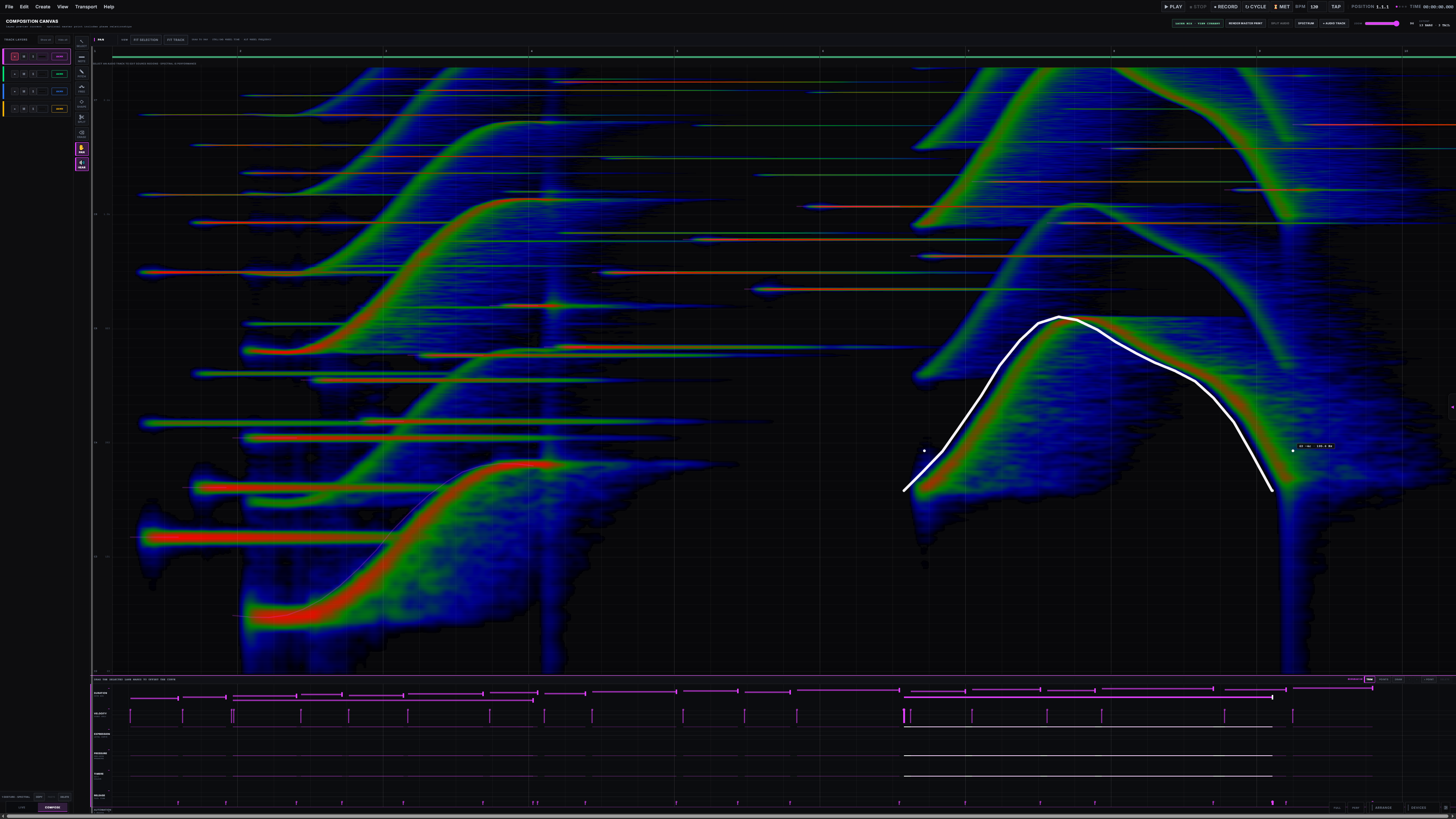
A note tells you what to play. Here, you can also see the sound it makes: its overtones, its movement, and the trail left by its effects.
Keep editing the phrase while you design its sound. Stretch a note, redraw a bend or change an effect, then see the updated spectrum in place.
- 01 / Performance
Shape the gesture.
Draw notes and freehand pitch curves. Refine velocity, pressure, timbre and expression without flattening the performance into audio.
- 02 / Sound
See beyond the note.
Read the harmonics and effects decay alongside the phrase that creates them. The note ending is not necessarily the sound ending.
- 03 / Layers
Untangle a soundscape.
Hide a track’s spectral layer to inspect another. Visual isolation leaves the mix alone, so seeing less does not mean hearing less.
Gesture edits appear immediately. Spectrum rendering is asynchronous, with Live, Settle and Manual refresh modes.
Your palette is made of instruments
Build a voice.
Save it as a brush.
A brush can recall a track’s synth, effects chain and playing response. Keep the phrase and try a different voice—or design a new one and add it to your palette.
Under the canvas is a connected device graph. Shape the source, filter it, add space, and trace how the sound reaches the output.
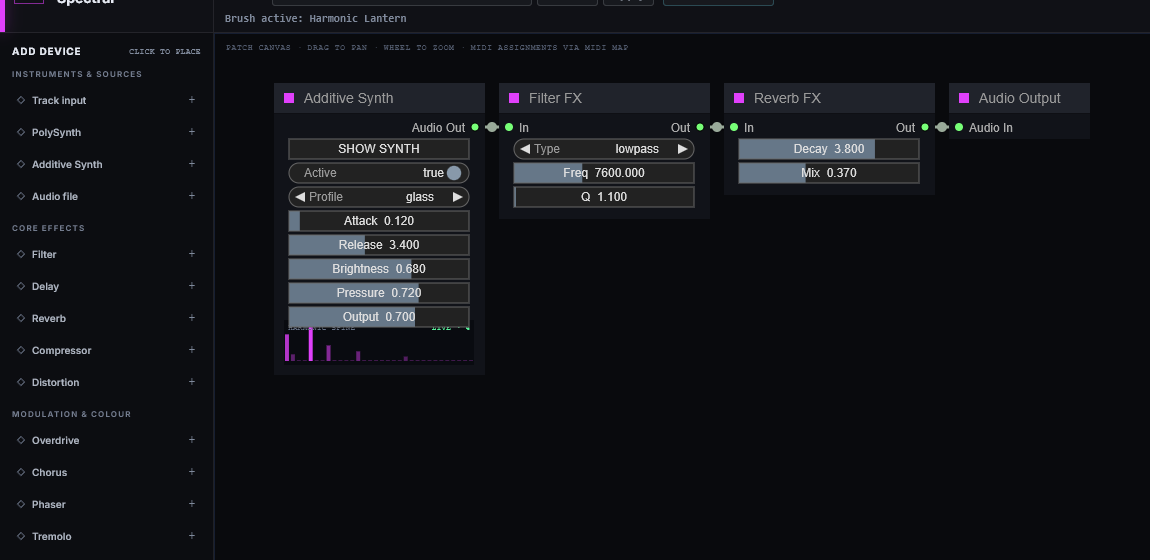
Inside the additive synth
Design the harmonics
behind the brush.
Sculpt a 32-partial profile to build a timbre, then shape its attack, release and response. The canvas is the creative surface; the synth and graph give you control over what it sounds like.
Inspect the synth at full resolution ↗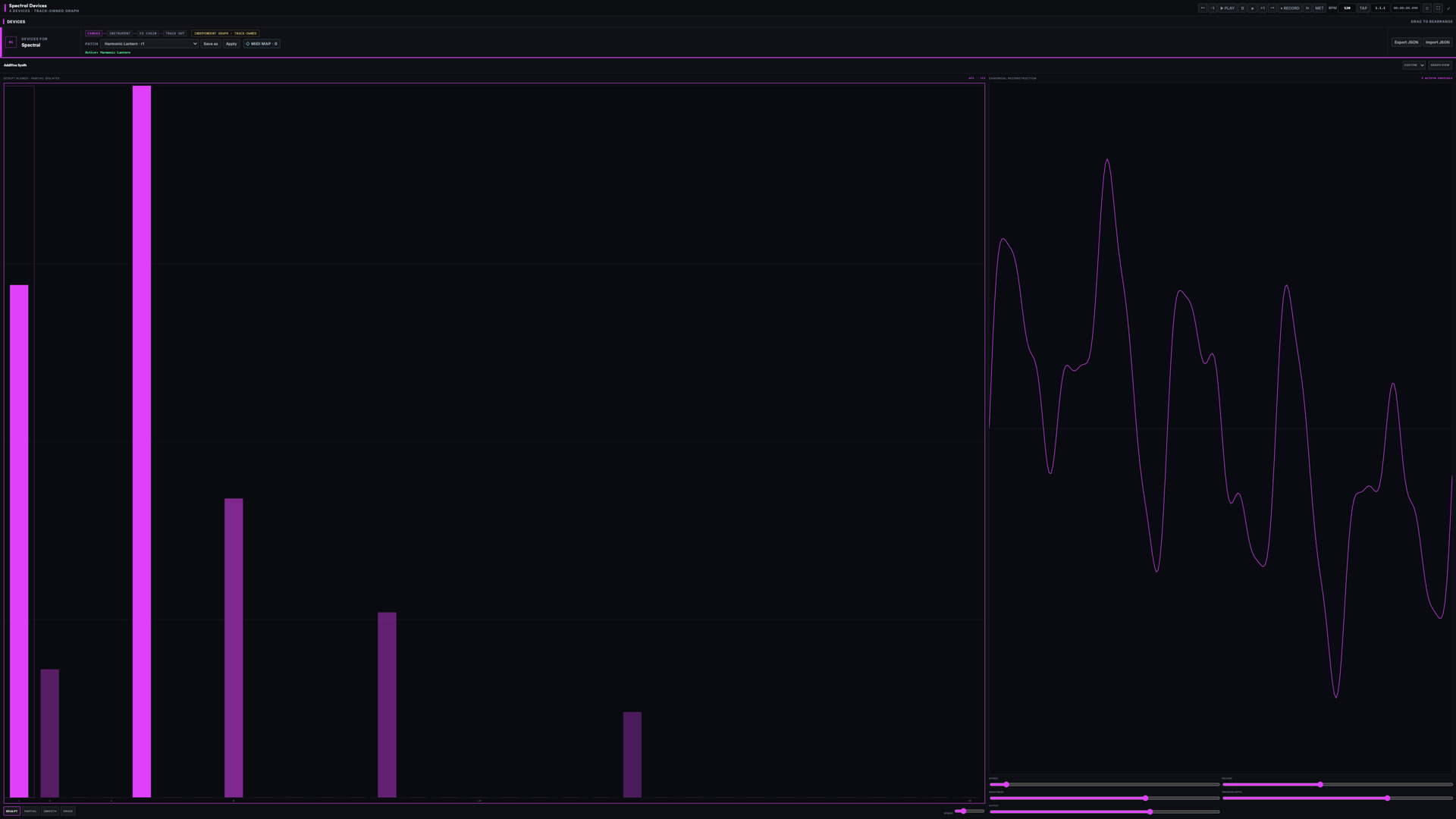
Session pads & scene launching
Build phrases.
Perform a whole set.
Keep variations in clip pads. Launch one phrase on its own, or bring in a scene across tracks at the same beat or bar boundary. Turn on Arrangement Record to capture the performance as you build it.
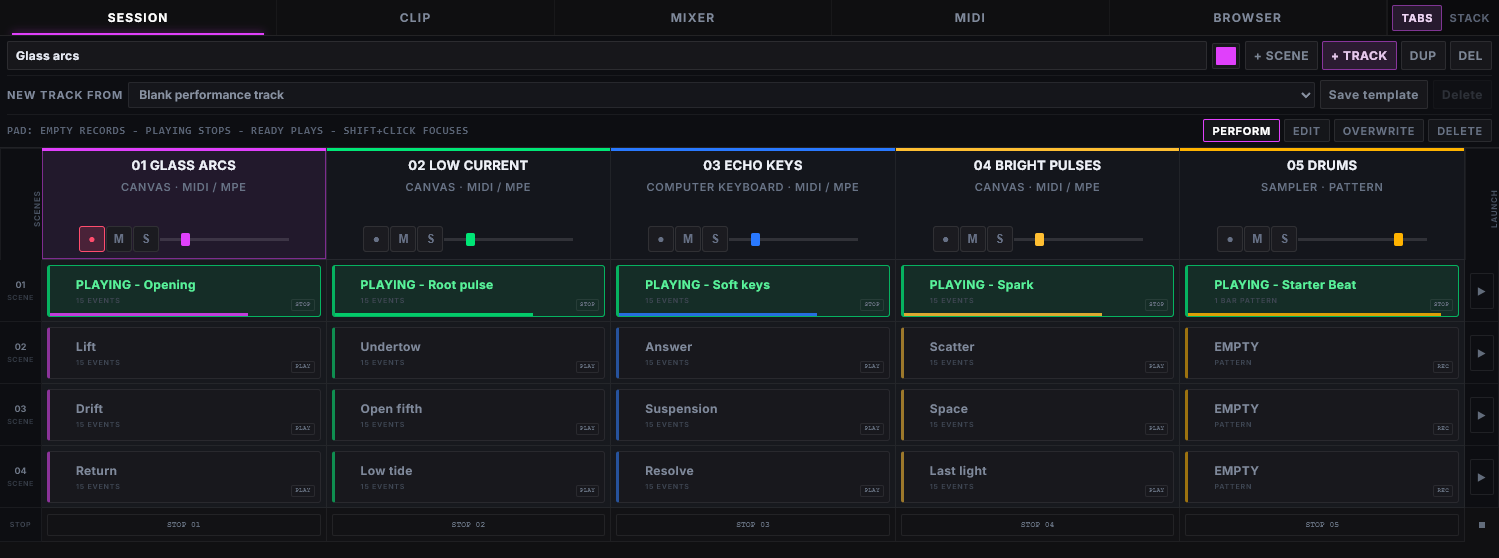
A pad holds a clip. Record into an empty pad, finish into a loop, then launch or stop it. Session supports expressive MIDI, audio and drum-pattern clips.
A row is a scene. Use the launch button at the right to queue its populated clips together. Choose immediate launching or a musical boundary, from a sixteenth note to two bars.
Keyboards, expressive controllers & hardware controls
Play and control
it with MIDI.
Use a mouse or digital pen to draw, play several notes at once on a multi-touch screen in Live view, or use a computer keyboard or MIDI/MPE controller. The performance becomes musical material you can keep shaping.
- Record the expression
- Capture notes and velocity, pitch bends, pressure, timbre and expression. Compatible MPE controllers let individual notes carry their own movement.
- Map the controls you use
- Use MIDI Learn to connect knobs and faders to instrument, effect and mixer parameters. Save those mappings with the Session or export a controller map.
- Bring your phrases in
- Import MIDI files into Session or Arrangement, then edit their notes and bends. Export expressive MIDI files when you want to carry the phrase into another project.
MIDI compatibility and file support
Browser MIDI requires a supported browser such as desktop Chrome or Edge, permission to access devices, and compatible hardware. MPE expression and bend ranges must be configured appropriately on the controller and receiving instrument; hardware-specific integration is not universal.
MIDI-file import supports Standard MIDI File formats 0 and 1 and uses the project tempo. Notes, velocities, bends, CC74 timbre and CC11 expression are converted to editable gestures. Pressure, program changes, SysEx and unsupported controller events are not preserved on import. Live MIDI capture and MIDI-file import therefore have different expression coverage.
MIDI Polyphonic Expression output
Play your favourite instruments from the canvas.
Your sound doesn’t have to come from Spectral Pool. Use the canvas as an expressive MIDI controller for compatible software synths, instruments in your DAW, or hardware.
Send notes and velocity, independent pitch bends, pressure, timbre and expression through a MIDI output. With an MPE-capable instrument, one note can bend while the others stay put.
- PerformSpectral Pool
Your notes, bends and expression
- ConnectMIDI / MPE output
A virtual MIDI cable or hardware port
- Make the soundYour instrument
A DAW instrument, standalone synth or hardware synth
Play over a track.
Keep your own sound.
Load an audio track, follow its spectrogram and play notes over it. Send your performance to an external instrument while the original track gives you something to respond to.
The audio is your reference. Your gestures generate the MIDI—this is not automatic audio-to-MIDI conversion.
Connecting your DAW or synth
Select a MIDI output in Spectral Pool’s I/O controls, enable that port as an input in your receiving app, and put the instrument in MPE mode. Match its pitch-bend range to Spectral Pool’s setting (±48 semitones by default). The receiving instrument decides how pressure, timbre and expression affect the sound.
On Windows, use a virtual MIDI cable such as loopMIDI. On macOS, use the IAC bus, or the built-in Spectral Pool MPE port when available in the desktop/local-server version. Browser MIDI needs a supported browser and device permission.
MIDI sends performance data, not audio. To see an external instrument’s sound in the spectrogram, route its audio back into an audio input in Spectral Pool. MPE support and setup vary by instrument and host.
Compose it. Loop it. Play alongside it.
A loop you can
see coming.
See the next pass approach the live line. Use the visible pitches and harmonics to guide what you play alongside it. Then return to the canvas to refine the gestures you recorded.
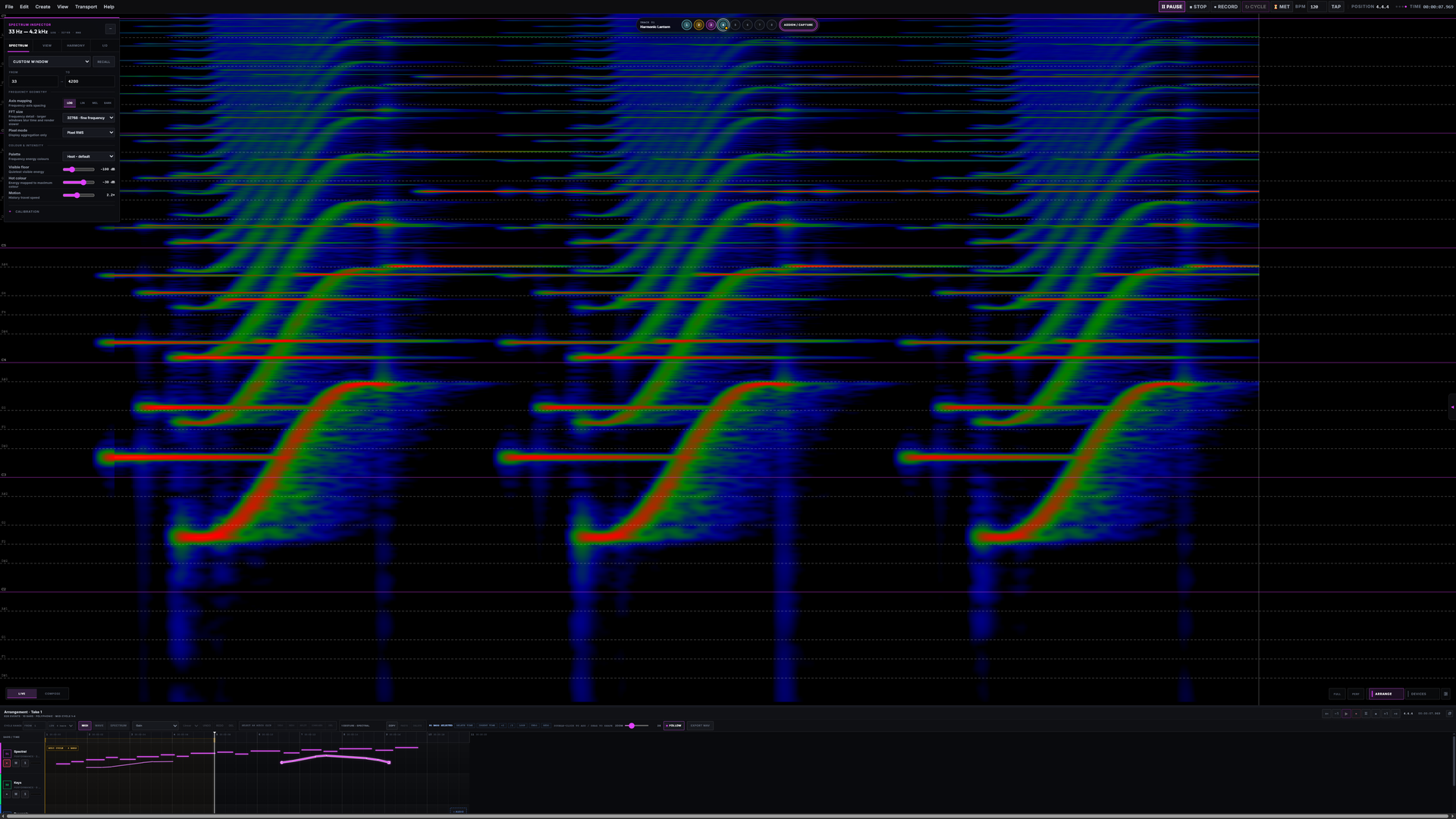
The forecast shows known scheduled material; the history shows post-effects audio that has played. Forecast fidelity depends on the devices in use.
Spectral Pool / Private beta
For music built from
texture, movement
and expression.
Explore a different way to compose electronic music and evolving soundscapes—with your eyes, ears and gestures working together.
Request beta accessOpens your email app. Tell us what you make and how you would like to use Spectral Pool.